The use of the browser gologin has been proliferated for its ability to manage multiple profiles and account fingerprints exclusive. It is recommended to accompany gologin with a premium residential proxy provider for you to achieve better targeting and lower chances of account blocks. The guide below outlines the entire process of configuring a residential proxy with gologin: 1) access Proxy4U, 2) get your residential proxy from Proxy4U and 3) set it up inside gologin properly so that your location targeting, rotation, and protocol settings operate smoothly every time.
Why use a dedicated proxy provider with gologin?
Using browser proxies that are integrated into the program are convenient however they hardly offer the reliability or targeting choices that practitioners do. An additional proxy service will provide you with:
- Precise geo-targeting (country, city exclusions)
- Control over rotation intervals so IPs refresh at predictable times
- Protocol choice (HTTP or SOCKS5) to suit your tooling
- Reusable credentials across multiple tools and profiles
Step 1 — Create accounts and prepare
It is advised to make sure that your gologin and proxy provide them with active accounts for the configuration of this particular proxy location. Use Proxy4U for residential proxies — the dashboard provides pay-as-you-go balance and fast live support if you run into issues.
Firstly, you need to launch Gologin and create a fresh browser profile. Afterwards, in the profile editor, locate the Proxy tab and opt for Choose saved proxy, then click on the three dots and select Add new proxy. The credentials for the proxy will be pasted here in the next steps.
Step 2 — Configure the residential proxy in proxy4u
Within the proxy4u dashboard, choose the desired proxy type(residential is recommended). To achieve a specific country filter or to avoid some countries, it should be set prior to generating credentials. For instance, choose the United Kingdom, and exclude any countries that you do not want.
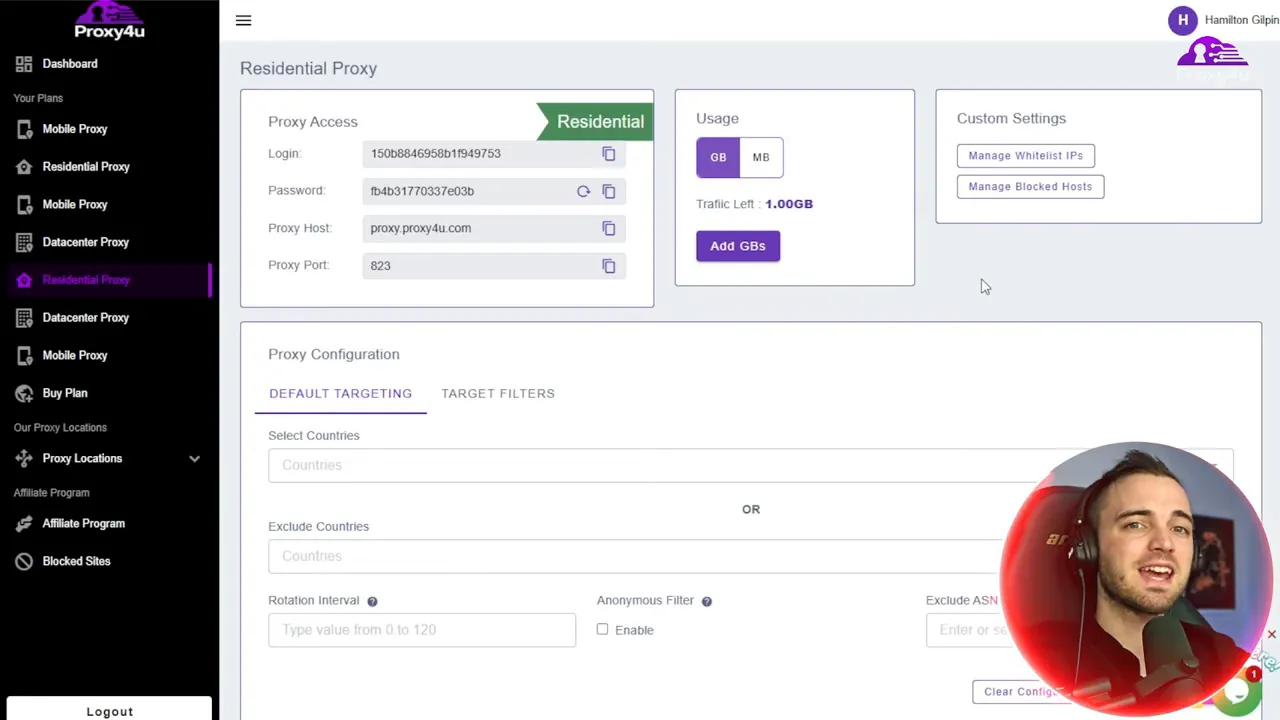
Key settings to configure:
- Country targeting — pick a country for the exit IP
- Exclusions — explicitly exclude countries like Brazil or Vietnam if needed
- Rotation interval — set how often the IP changes (for example, 12 to rotate every 12 minutes)
- Protocol — choose HTTP or SOCKS5 depending on your use case
Once you add these filters, the dashboard will create a fresh list of connection credentials. It is of great importance to take note of the newly created credentials from this subsection; taking the default, generic credentials at the top will lead to not correct or erroneous IPs.
Step 3 — Paste credentials into gologin (exact order)
Gologin anticipates the proxy information to be provided in four different fields: login (username), password, host (IP), and port. To ensure that you do not have any connection or targeting problems, stick to this order r, uh, your own way.
- From proxy4u, copy the username string up to the first semicolon and paste it into the gologin Login field.
- Copy the password — the section between the next semicolon and the at symbol — and paste it into the Password field.
- Copy the host/IP portion — the section between the at and the next semicolon — and paste it into the Host field.
- Finally, copy the port number at the end and paste it into the Port field.
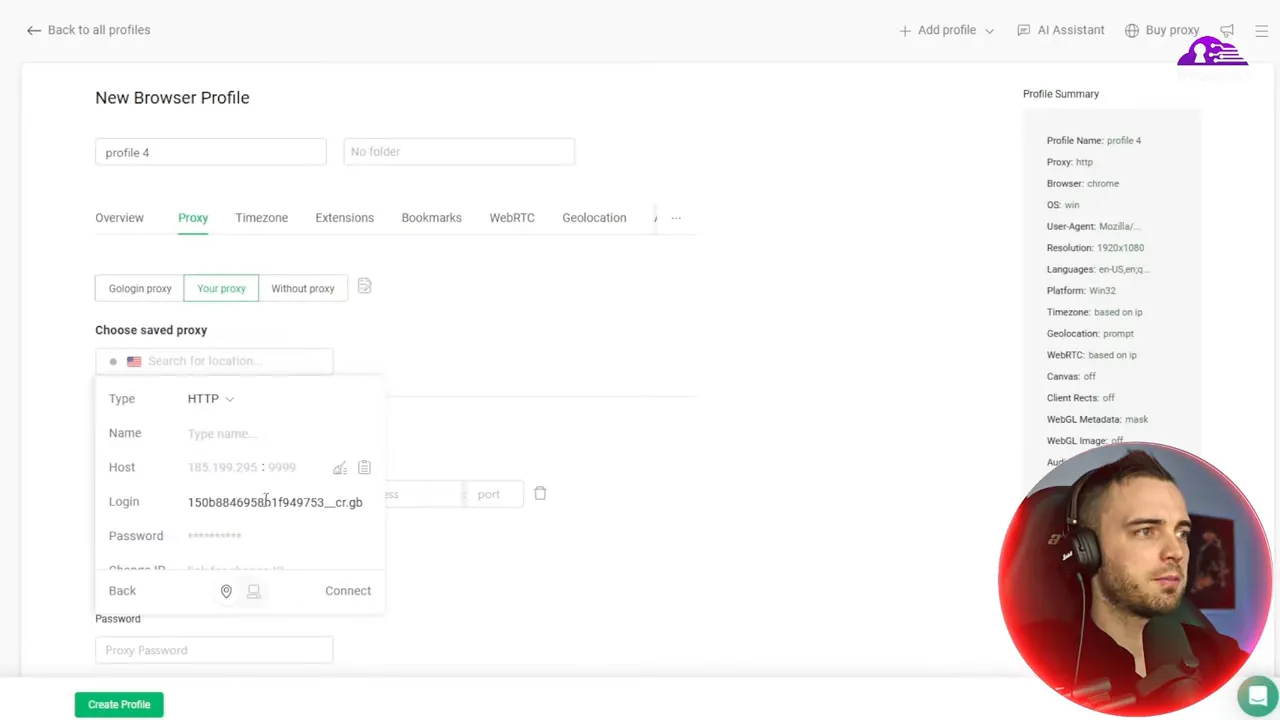
Do the mentioned steps to add my proxy. Once you enter the four details, simply click Add my proxy and then Connect. Store the proxy and verify the status. A proper connection will show that the proxy is in connected and live status in gologin.
Troubleshooting and verification
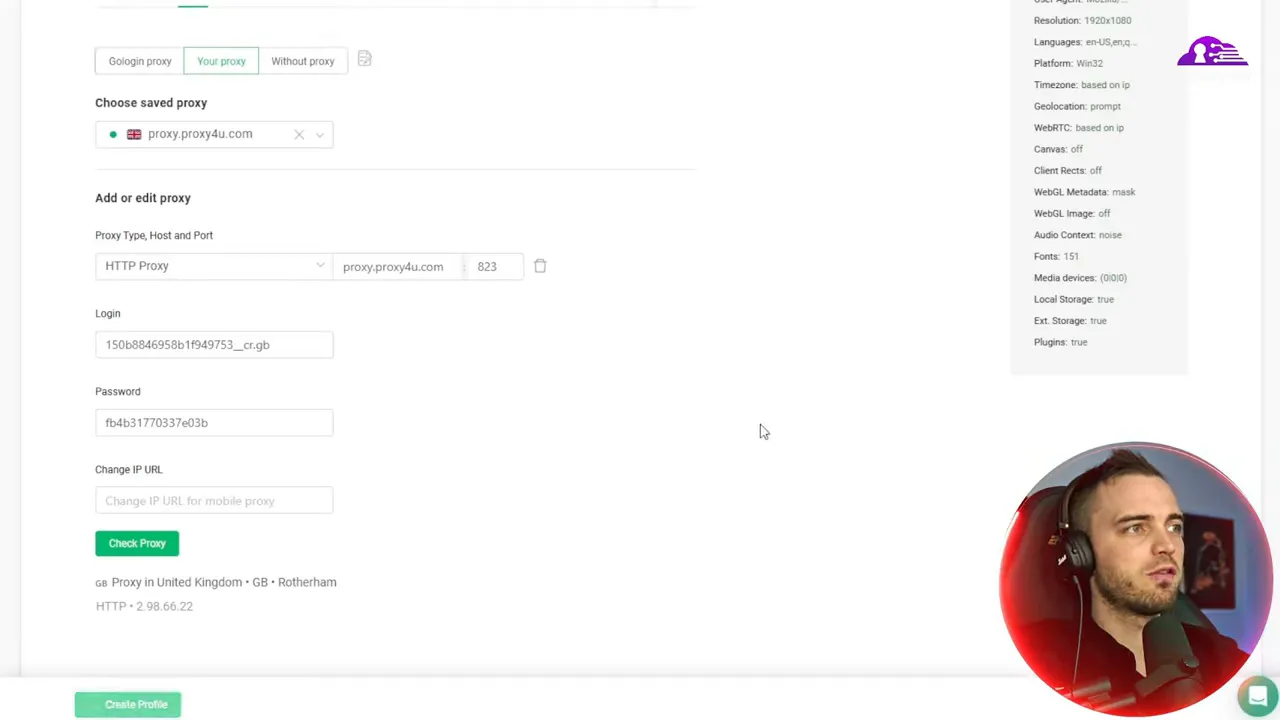
Check the proxy settings in the connection checker. The main detail to check is the selected location. For instance, if you have set the proxy to the United Kingdom, the IP location should indicate United Kingdom. In case the location is showing largely different, you most probably have copied the wrong credentials (the default ones at the top rather than the generated credentials). Please sure to recopy the correct username generated and then try again.
Common fixes:
- Recopy credentials from the generated block, not the generic defaults.
- Check that protocol (HTTP vs SOCKS5) matches what your tools expect.
- Adjust rotation interval if sessions are dropping unexpectedly.
Using the same proxy across other tools
With Proxy4U providing standard log in:password@host:port access, you can easily replicate the same proxy settings on different browsers and web scraping machines. Thus, you can achieve a very simple scaling: just keep a single set of credentials per targeted region and plug them into each profile or tool as needed.
Quick checklist before launching profiles
- Confirm geo-targeting and exclusions are correct
- Verify rotation interval suits your session length
- Ensure protocol selection matches the tool
- Test the proxy connection in gologin and confirm the IP location
proxy4u is an excellent option for residencesthat demonstrate thriving proxies & supportive helpfulness. Noting
notice their
ideas.Test it and try to expand your business easily with their pay-as-you-go setup.Wrap-up
Combining gologin with a direct residential proxy provider virtually eliminates the guesswork in multi-account handling. The precise credential flow mentioned before is used here as well: login, password, host, port. Don't forget that you always need to copy the credentials randomly generated after you apply the country and rotation settings in the proxy dashboard. This is the key routine for switching from random IPs to exactly targeted connections.
Looking for a good starting point? Simply opt for Proxy4U to create targeted residential proxies and thereafter connect with gologin to get the most stable, geo-accurate sessions available.
подсказка: приличате добър екип и е много приятно да работя с вас.
Additional tips & examples
Use these rapid tests to sidestep usual credential-copy mistakes and to authenticate connections prior to launching profiles:
- Sample credential format — proxy4u credentials sometimes include metadata fields. A typical generated string might look like:
usr_uk;city=lon;P@ssw0rd@52.14.10.7;8080
Extraction:- Login:
usr_uk - Password:
P@ssw0rd - Host:
52.14.10.7 - Port:
8080
- Login:
- Quick verification — after adding the proxy in gologin, open an IP-checker page in that profile to confirm the reported country matches your target.
- Protocol match — ensure the selected protocol (HTTP vs SOCKS5) matches other tools using the proxy to prevent authentication or connectivity failures.
- Rotation tuning — set rotation intervals longer than your typical session to avoid mid-session IP changes unless you specifically need frequent rotation.
- Logging — keep a small secure note with generated credential pairs and their target region so you can quickly reapply the correct credentials if needed.
This is the last reminder: please ensure that you observe the regulations set by the platforms you visit and also obey the relevant laws while engaging in the use of proxies and multi-account set-ups.


